
USB Secondary Displays for POS Systems: Weighing and Bar-Type Customer Displays
In supermarkets, fresh-food stores and retail checkout areas, operators use the main screen for weighing and payment while customers need a clear view of product weight, prices and transaction information. Adding a customer-facing USB secondary display creates a separate information area while retaining the existing host and operator screen.
This article uses a weighing POS terminal connected to a bar-type color display as an application example. Standard USB connectivity simplifies installation, cabling and retrofits. Alongside weighing data, the POS application can organize product names, amounts, store messages and promotional content on the secondary display.
Connection Example
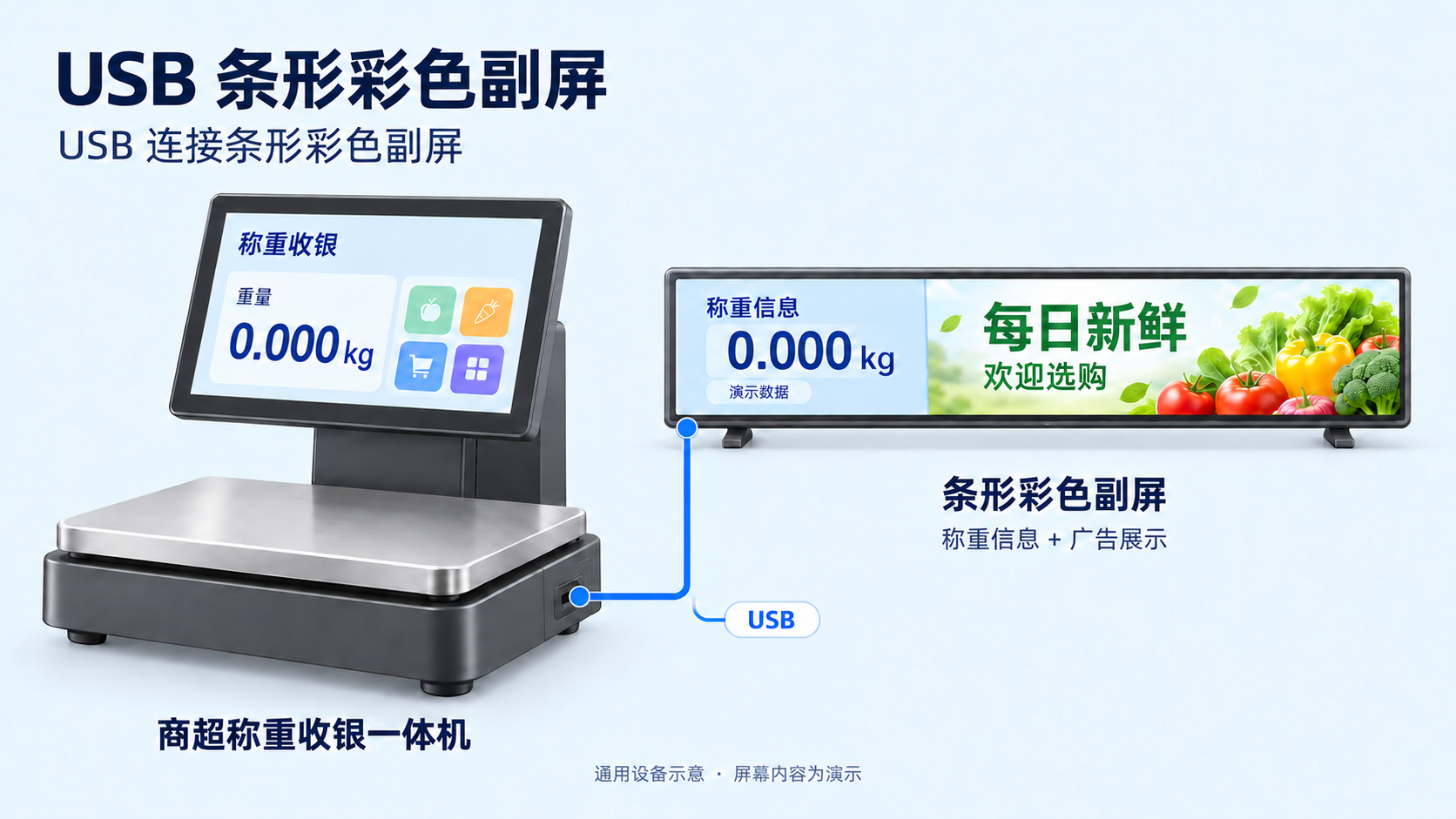
The host connects over USB to a bar-type display facing the customer. One area shows weighing information while another presents promotional content. The image illustrates generic equipment and a demonstration interface; the displayed values are not a specific customer delivery record or measured results.
| Component | Role |
|---|---|
| Weighing POS host | Runs the POS application and processes weighing, product and checkout workflows |
| Operator screen | Provides product selection, checkout controls and device management |
| USB connection | Transports host-generated secondary-display content to the display device |
| Bar-type color display | Shows weight, amounts, product details or promotional content to the customer |
Business data comes from the POS application. Connecting the display over USB does not automatically obtain scale readings or transaction data. The POS application or a companion customer-display application must integrate the corresponding data source.
Why Use a USB Secondary Display?
Plug-and-Play Operation After Integration
Once the host driver, client or system integration is complete, users can connect the secondary display through a USB cable for installation, replacement and maintenance. Field setup generally avoids the panel ribbon connections and board-level signaling involved in a direct display connection.
“Plug and play” describes operation after adaptation. It does not mean every USB display works without drivers on every operating system.
Standard Cabling and More Flexible Placement
An internal MIPI display connection typically requires matching the board interface, ribbon cable, timing and mechanical arrangement. USB uses standard connectors and data cables, making it easier to position the display toward the customer, at the edge of the counter or away from the host enclosure.
Compared with common short internal MIPI ribbon connections, USB is more practical for longer external cable runs and sourcing replacement cables. Usable distance depends on USB version, cable quality, bandwidth and power conditions; validate the required length. Longer installations require separate evaluation of an extension solution.
Easier Retrofitting of Existing POS Systems
Adding a directly connected panel to a host without an available MIPI interface may require board and enclosure changes. A USB secondary display can use an existing USB port, reducing changes to the main board and internal ribbons. This suits customer-display upgrades, existing store equipment and reuse of a display type across host platforms.
Simple Hardware Wiring, Application-Defined Content
The illustrated design uses USB between the host and secondary display to simplify field wiring. USB power may be used when device consumption and host-port capabilities allow it. Confirm whether a separate supply is required based on display size, brightness and total power demand.
After connection, extended-desktop operation or an application-driven display path can be selected according to the driver capabilities and software architecture, separating operator and customer tasks.
USB Versus Internal MIPI Connections
| Consideration | USB secondary display | Internal MIPI panel connection |
|---|---|---|
| Connection | Standard USB connector and data cable | Board-specific connector, ribbon and panel timing |
| Placement | Suited to external cabling and separation between host and display | Commonly used inside an enclosure with a short board-to-panel distance |
| Existing-system retrofit | Uses an available USB port, with software adaptation as a key check | Requires a suitable board interface and driver support |
| Service and replacement | Standard cables simplify sourcing, connection and replacement | Verify ribbon specifications, pin assignments and panel configuration |
| Software work | USB display driver or client and customer-display content | Display controller, panel driver and display content |
The two approaches suit different product architectures. USB's standard interface and external cabling simplify adding a customer display to an existing host. A newly designed integrated terminal can evaluate direct MIPI connection against its board resources.
Windows, Linux and Android Integration
The solution supports adaptation for Windows, Linux and Android POS systems. After selecting a USB display chip, module and software revision, confirm the host-side operating method:
| Host system | Integration checks |
|---|---|
| Windows | Install a matching USB display driver; check extended or mirrored mode, resolution, orientation and POS window placement |
| Linux | Check the kernel, CPU architecture, display driver and desktop or embedded display framework against the target distribution or image |
| Android | Check USB Host capability, device permissions, the companion client or system integration method and the POS application's secondary-display output path |
Cross-platform support does not imply a universal installer. Refer to the USB display driver and client resources and select an integration method for the actual chip, host OS and software version.
Designing Customer-Facing Content
- During weighing: emphasize weight and product information for customer confirmation.
- During checkout: show amounts and transaction status supplied by the POS application, keeping the two screens consistent.
- While idle: display store notices, product promotions or advertisements.
- On a bar-type panel: separate business information and promotional areas, prioritizing readable numbers and text at the intended viewing distance.
Available content depends on the POS application's data interfaces and display capabilities. Advertisement playback, state changes and layout behavior require corresponding application logic.
Retrofit Workflow
- Confirm the existing host's OS version, CPU architecture, USB ports and power capability.
- Define display size, resolution, orientation, mounting position and cable length.
- Select a compatible USB display solution and validate the driver or client on the target system.
- Integrate POS application data and design separate operator and customer content.
- Test connection and disconnection, recovery after reboot, sustained operation, cable routing and power before deploying at a counter.
Project Inquiries and Resources
Contact UltraSemi at doc@ultrasemi.com to add a USB customer display to a checkout terminal, weighing terminal or retail POS system. Include the host OS, target display specifications, business data interfaces and installation requirements to help define the hardware and software configuration.