
ArtInChip D125 Zephyr Bring-up Board with a 5.5-inch MIPI Display
UltraSemi's D125 Zephyr display bring-up board combines an ArtInChip D125 controller, a 5.5-inch MIPI display, serial debugging and onboard controls for Zephyr board bring-up, display initialization and LVGL UI development. A portrait Dashboard example provides gauges, charts and animated widgets, while the UART Shell supports runtime inspection.
The board name is ultrasemi_d12p_usbdisp_demo88_nor_5_5. It can be used as an exposed development assembly or paired with an enclosure for demonstrations, providing a starting point for display terminals, HMI prototypes and instrument interfaces.
Dual USB-C ports: choose one, never connect both
The two USB-C ports are positioned to make cabling convenient with the display in landscape or portrait orientation. Connect either port; do not use both ports at the same time.
Board Specifications and Interfaces
| Item | Description |
|---|---|
| Designer | UltraSemi |
| Platform | ArtInChip D125, RISC-V |
| Pictured SoC | Annotated as D125CCS |
| Display | 5.5 inches, 720 × 1280, portrait |
| Display interface | MIPI DSI |
| PSRAM | The D125CCS validation unit documented by the board source has 16 MiB; confirm the delivered hardware |
| External storage | SPI NOR; the image labels SY25Q64, with capacity to be confirmed against the fitted part and its datasheet |
| Debug serial port | UART0, PA0 / PA1; 115200, 8N1, no hardware flow control |
| Buttons | One BOOT button and two user buttons, as annotated |
| Indicators | Power LED and user LED |
| Connectors | MIPI display connector, two USB-C ports and an SD card slot, as pictured |
| USB-C connection | Use either port, never both simultaneously; choose the position that suits landscape or portrait placement |
| Zephyr board name | ultrasemi_d12p_usbdisp_demo88_nor_5_5 |
| Existing build target | ultrasemi_d12p_usbdisp_demo88_nor_5_5/d125ccv |
| Example application | dashboard_720x1280_d125_mipi, depending on the selected application repository version |
D125CCS is the hardware annotation, while d125ccv is the existing software qualifier. The board documentation records boot and Shell validation on a D125CCS unit with this qualifier. They should not be treated as identical ordering codes.
Match storage configuration to the hardware: the current public device tree declares 128 Mbit (16 MiB) NOR, while the image labels SY25Q64. Check the actual board, Flash capacity, partitions and image configuration before flashing. The software declaration does not establish the capacity of the pictured device. Confirm specific USB functionality and SD card access support against the schematic and selected firmware.
PCBA and Enclosure Showcase
Annotated PCBA Components and Interfaces
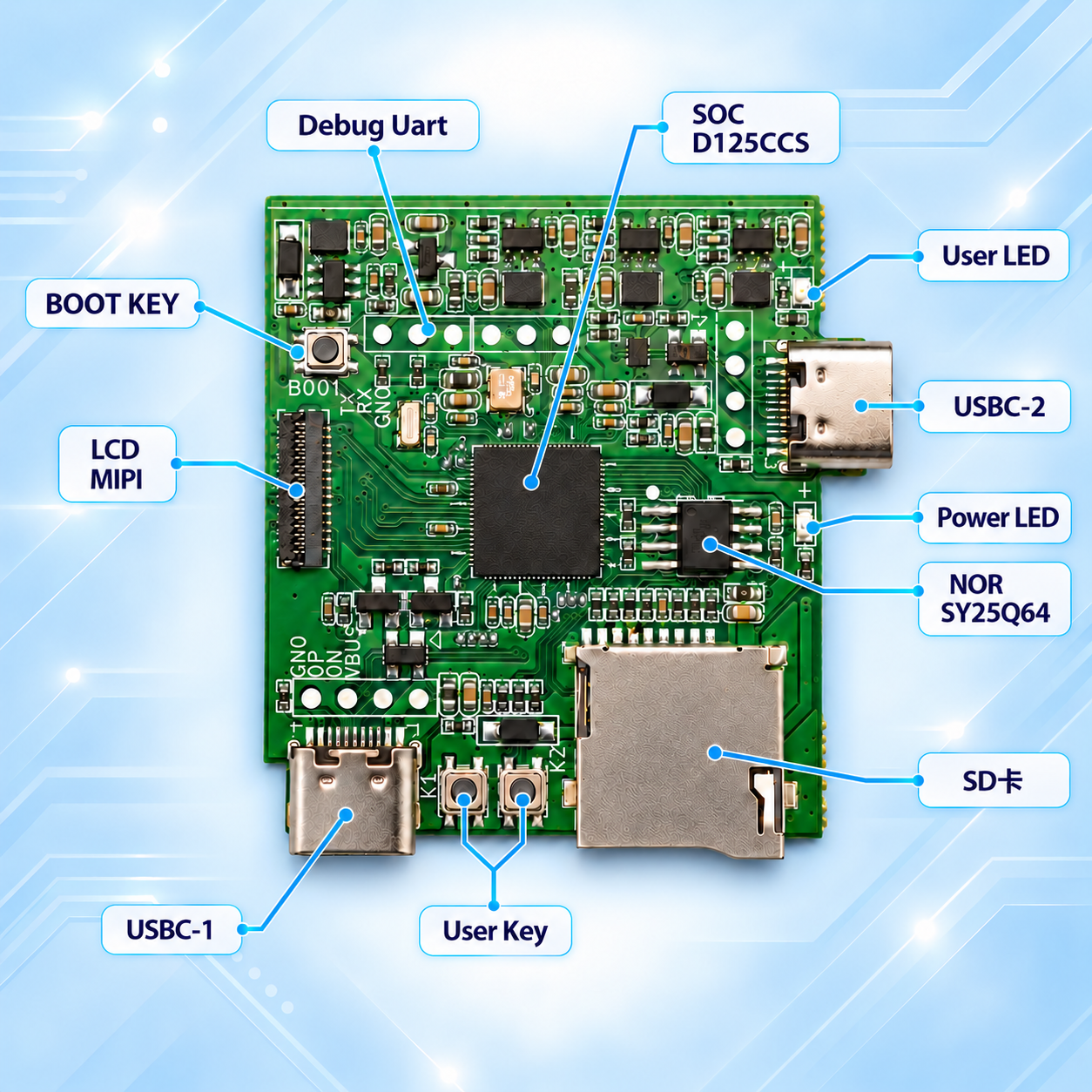
Connect either USBC-1 or USBC-2, never both simultaneously. Choose the port that gives convenient cable clearance in landscape or portrait placement. The annotations identify debugging access, the display connector and onboard controls. Begin with power checks, UART logs and BOOT operation before verifying display output.
Enclosure Front and Back with Dashboard
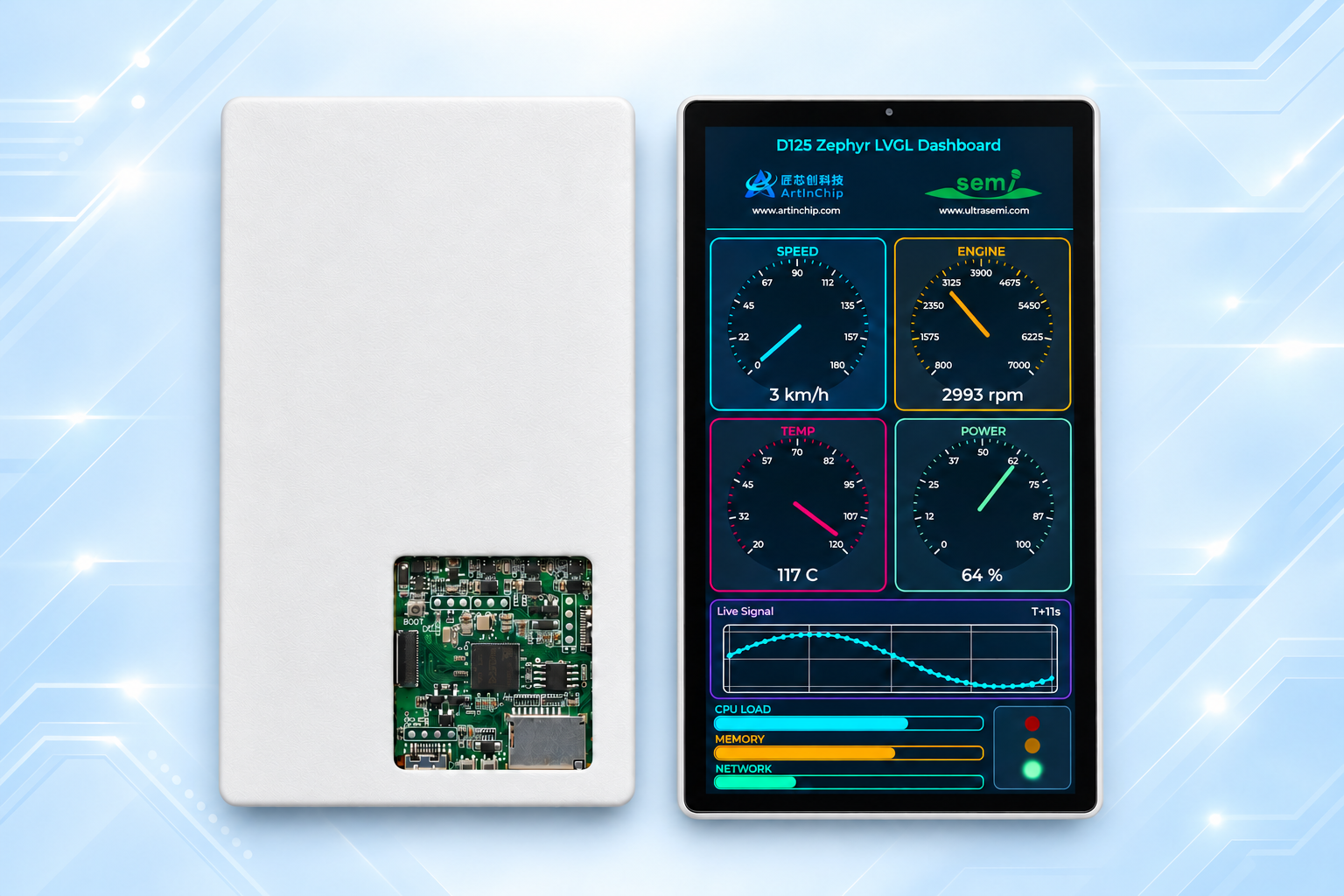
The front surrounds the portrait display, while the rear opening reveals the PCBA. These views support assembly, connector placement and demonstration planning.
Enclosure Color Options
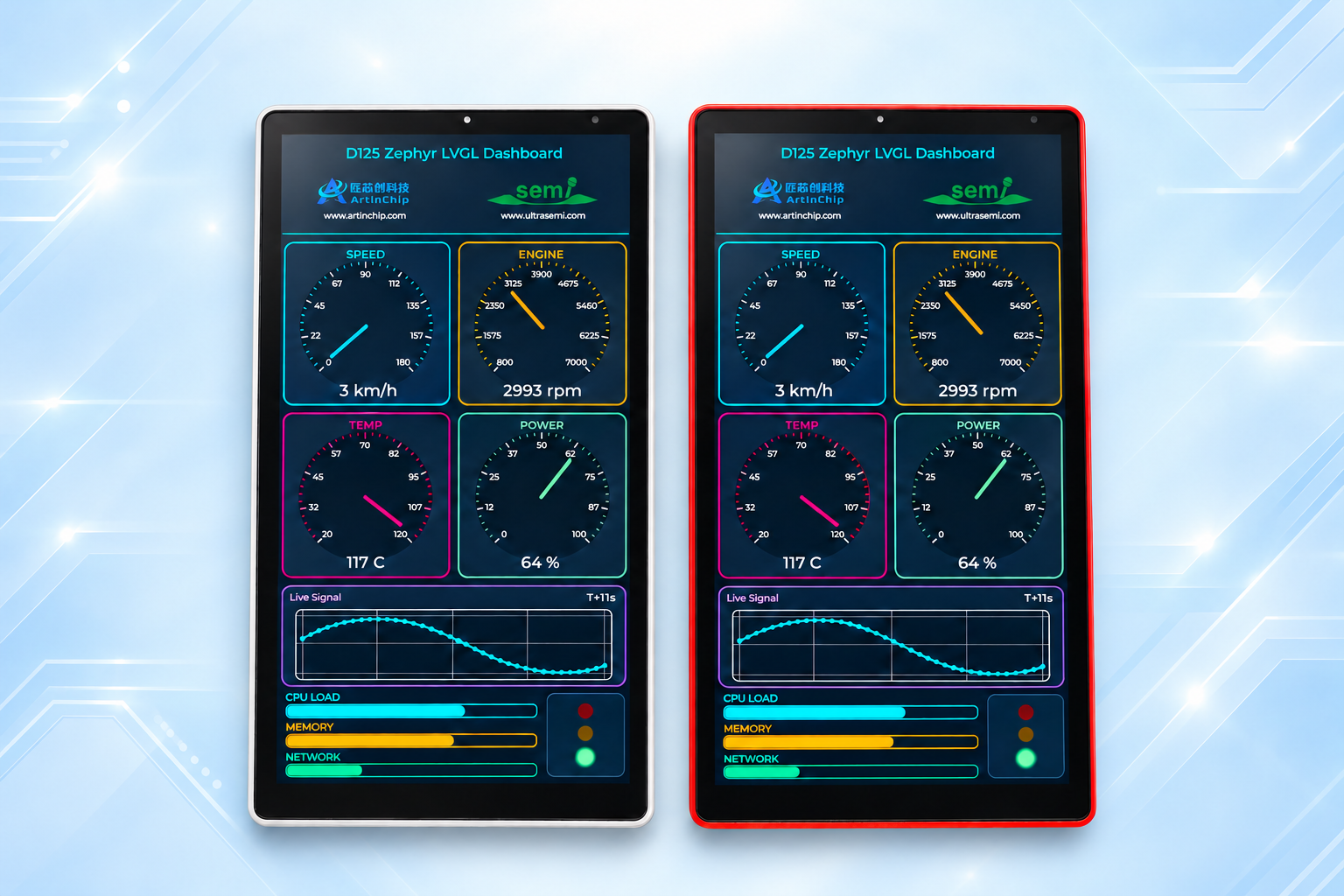
The image illustrates light-colored and red frame designs for product and mechanical discussions. Final colors, materials and enclosure configuration depend on the project.
5.5-inch Display and Both Sides of the PCBA
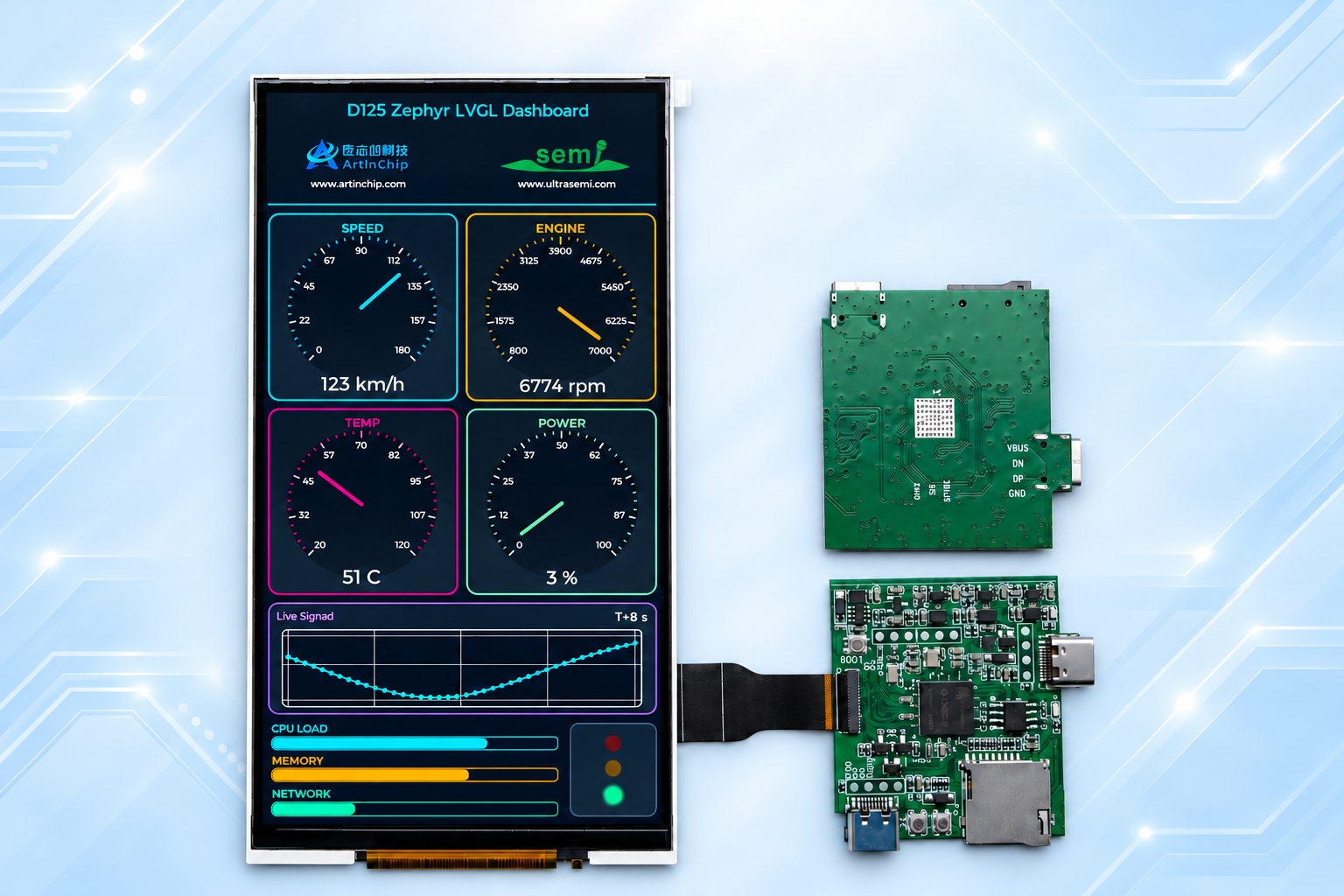
The assembly view shows the display-board connection and both sides of the PCBA, helping assess mounting space and cable routing during prototyping.
Hardware Design Files and Online Previews
These files cover the D125CCS MIPI SD Demo. The KiCad project and PDF schematic carry the 2026-10-21 version identifier. The Interactive BOM is the corresponding PCB bill of materials supplied with this update.
| Resource | Contents and purpose | Access |
|---|---|---|
| Enclosure 3D model | STEP model of a single enclosure cover for CAD viewing, dimensional checks and mechanical fit evaluation | Download enclosure STEP |
| KiCad schematic and PCB project | Includes .kicad_pro, .kicad_pcb, the main schematic and subsheets; preserve the extracted directory structure and open the project file | Download KiCad project ZIP |
| PDF schematic | View the circuit design without installing KiCad | Open PDF separately · Download PDF |
| Interactive HTML BOM | Linked bill of materials and PCB layout for component lookup and front/back views | Open Interactive BOM separately · Download HTML |
The STEP file contains the supplied enclosure cover, not a complete assembly model. Before enclosure or PCB fabrication, check model and project revisions against the target display and physical board dimensions and interfaces. Contact UltraSemi to confirm use and redistribution permissions.
Interactive PCB Bill of Materials
Use the embedded viewer to locate BOM components on the board, switch sides and search references or parts. Select “View fullscreen” to expand the viewer, then “Exit fullscreen” or Esc to return. On smaller screens, you can also use “Open separately”. Settings in the embedded preview may not persist between sessions.
PDF Schematic Preview
If your browser does not display a preview, use the separate viewing or download links in the table.
Zephyr Application Features
Portrait LVGL Dashboard
The Dashboard targets a 720 × 1280 layout with speed, engine, temperature and power gauges, a chart, progress bars, status lights and partner branding. Simulated data drives widget updates to demonstrate fonts, layout, colors and animation.
Speed, temperature, CPU LOAD, MEMORY and NETWORK values are demonstration data. They do not establish connected sensors or implemented resource and network monitoring.
MIPI Display Bring-up
The application configuration enables MIPI DSI and the ArtInChip display pipeline with 16-bit color depth. Bring-up can proceed through boot logs, panel initialization, backlight and image output before moving to LVGL widgets and interface development.
The referenced 5.5-inch Dashboard configuration disables touch and LVGL pointer, encoder and keypad input. Display operation therefore does not establish enabled touch interaction. User button and LED behavior also requires corresponding application configuration.
UART Shell and Upgrade Entry
Serial settings are 115200, 8N1, no hardware flow control, with the aic:~$ prompt. Enter help to list commands in the running firmware. The example provides aicupg to reboot into ROM USB upgrade mode; the host's AirBurn tool then performs flashing.
MCUboot and AirBurn Images
The existing project uses MCUboot RAM-load and ECDSA-P256 signing, with the boot chain ROM → PBP → MCUboot → Zephyr. Sysbuild builds the application and bootloader together, and packaging generates an AirBurn .img. Development configurations use development signing keys; production firmware should use the project's own keys.
Development and Validation Workflow
- Confirm the physical SoC, NOR capacity, display connection and power configuration.
- Follow the Zephyr source build and AirBurn guide to create a workspace and pin the application manifest.
- Select the 5.5-inch board target and Dashboard application, matching Flash partitions before building.
- Check image structure and flash through the upgrade interface appropriate to the physical board.
- Inspect boot and Shell over UART, observe gauge and chart updates, then validate upgrade entry.
Public board documentation records boot, Shell and earlier Dashboard hardware results on a D125CCS unit. Revalidate the corresponding version after changes to firmware, enclosure configuration, storage devices or display components. No firmware compilation or board tests were performed for this page.
Frequently Asked Questions
Should both USB-C ports be connected?
No. Connect either port, and never connect both at the same time. The two positions make cabling easier when placing the display in landscape or portrait orientation. Choose the port that leaves room for the display support and cable routing.
What is this board intended for?
Zephyr board bring-up, MIPI display debugging, LVGL portrait UI prototypes and instrument demonstrations. It provides a starting point for display terminals and HMI development.
Why does a D125CCS board use a d125ccv build target?
The physical chip annotation and existing software qualifier differ. Even with a previously validated configuration, confirm compatibility with the actual chip, memory and Flash parameters.
Does the Dashboard show real measurements?
The current example uses simulated animated values to demonstrate LVGL widgets. Real sensors and system metrics require separate data integration.
Resources and Project Inquiries
- UltraSemi Zephyr application repository
- Board documentation and device tree
- Dashboard configuration referenced here
- Zephyr build and flashing guide
Contact UltraSemi at doc@ultrasemi.com to evaluate the board, 5.5-inch display assembly or a custom enclosure. Include the intended application, display and input requirements, storage configuration and mechanical constraints.